The Library
Adding a book to your library

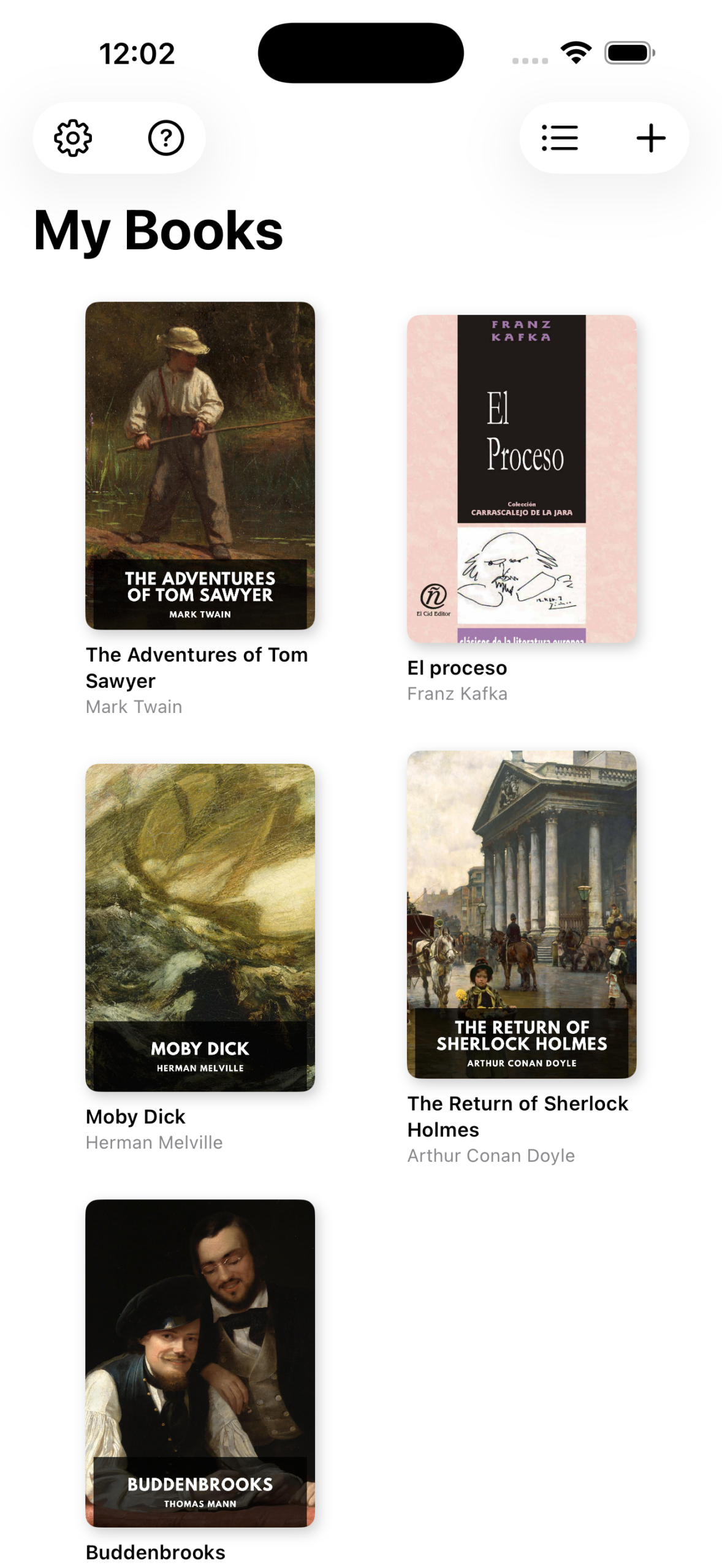
Click on the ‘+’-Icon in the Library View to open the window for selecting a book from your device or your iCloud drive. Only ebooks in the EPUB-format can be loaded into the Babel Reader. Please note that books may be rendered differently depending on the settings that were selected when producing the EPUB.
Removing a book from your library

If you like to remove a book from your library, long press on its title and choose ‘Delete’ from the menu.
Changing the book details

If you want to change the author or title of a book or the language it is written in, long press on the book’s title and choose ‘Edit Details’ from the menu. Make the changes you wish to make and press ‘Save’.
Changing between grid view and list view of the library


Tap the icon in the to right corner for switching between grid and list view of the library.
Accessing the Settings Menu

Tap the icon to access the Settings Menu, e.g. for activating the library synchronisation or for the options on how books are sorted in your library.