Copying a Unicode Character
In many cases, when you search for a Unicode character, you may also wish to copy that character or one of its code points (e.g. its U+Hex or its Decimal value). The Unicode Companion offers several easy ways of copying that information into the clipboard.
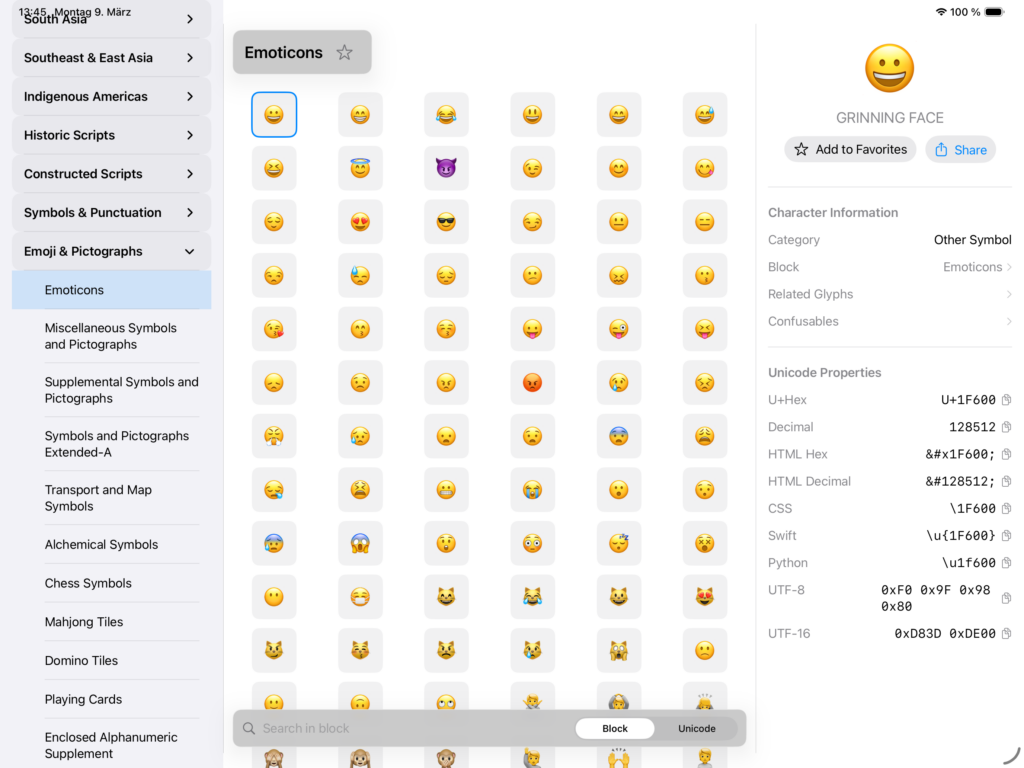
Selecting a Character in the Grid
When you select a character in the Grid, the displayed character is automatically copied into your clipboard, no other action is required. If you prefer a different value (e.g. UTF-8 or HTML Hex) to be automatically selected, you can choose the preferred code point in the settings.
A long-press/right-click on a character in the Grid opens a context menu with a Copy-as option that allows you to select one of several code points for the selected character into your clipboard.
Copying a Value in the Details View
When you select a character in the Grid, its related information is displayed in the Details View (on the iPhone screen or on the right side of the Mac or iPad screen). There you find a visual representation of the character (don’t forget that you can click on it for an enlarged view) and a block of Unicode Properties all of which you can select in order to copy its value into the clipboard.