Reading a book
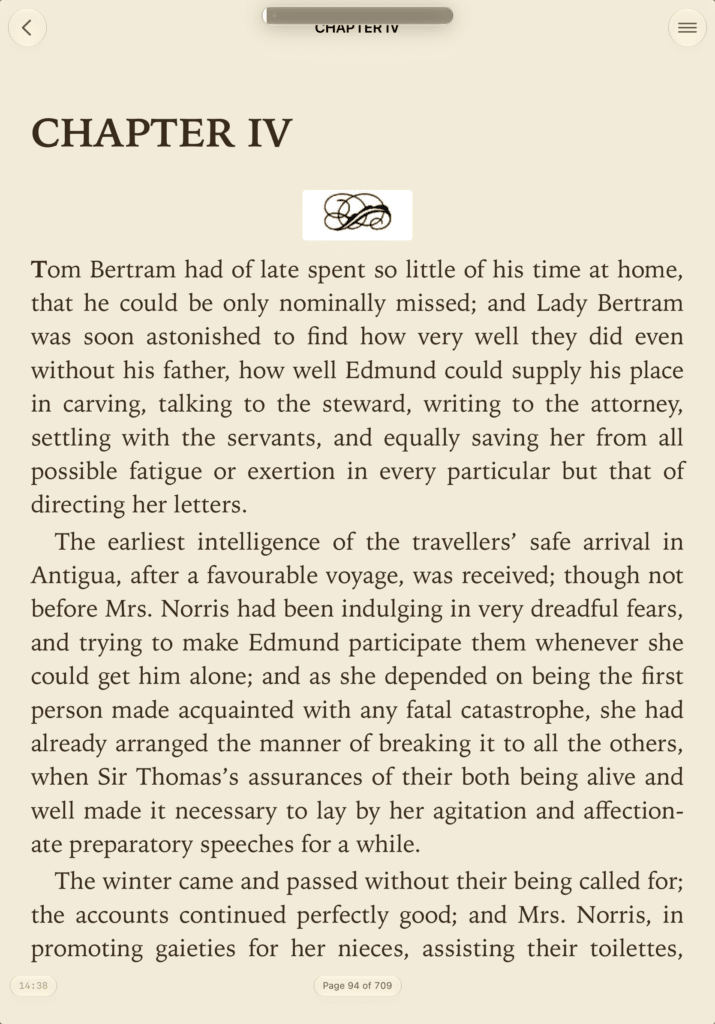
The reading page
When you open a book, you see just the text. At the bottom of the page, a discreet indicator shows how far you have read. Tap near the top or bottom edge of the page to show the controls; they hide again after a few seconds.
With the controls showing, you find:
- ‹ at the top left — close the book and return to your library
- ☰ at the top right — the reader menu (see below)
- the current time at the bottom left
- the page number in the book, e.g. “Page 64 of 608”, at the bottom centre
Turning pages
Swipe left for the next page, swipe right for the previous page. Swipe past the last page to go to the next chapter, or past the first page to go back to the previous one.
Your reading progress
While you read, the quiet indicator at the bottom of the page shows your position in one of three ways:
- Pages — the page number in the book, as in a printed edition
- Percent — how much of the book you have read
- Dots — the pages of the current chapter (in scroll mode, the percentage)
Choose the style under Appearance → Customise → Reading Progress. Whenever the controls are showing, you also see the page number together with the total, e.g. “Page 64 of 608”. Page numbers are worked out for your device, typeface, and text size, so they change when you make the text larger or smaller — just as a large-print edition has more pages.
The Reader Menu
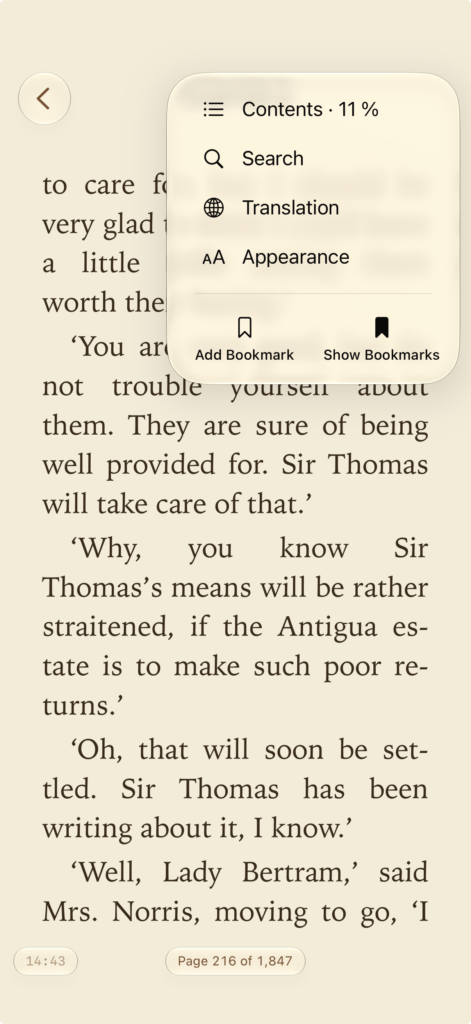
Tap ☰ to open the menu. It holds everything you need while reading:
Contents
The first line shows the Contents together with how far you have read. Tap it to see every chapter with its page number, and tap a chapter to jump there. Books that keep several chapters in a single file — common with Project Gutenberg editions — now list every one of them, with parts and their chapters indented. The Bookmarks tab next to Chapters shows your bookmarks.
Search
Choose Search to look for a word or phrase across the whole book. The results list every chapter with a match, a short snippet, and the number of hits. Tap a result to go there, then use the up and down arrows to move from match to match — they continue into the next or previous chapter. Tap Done to close the search bar.
Translation
Choose Translation to set the languages for this book only (see “Translating a Paragraph” below).
Appearance
Choose Appearance to change the text size, pick a theme (White, Sepia, Night, or Slate), and switch between Paged and Scroll mode. Tap Customise for the typeface (Georgia, Palatino, Baskerville, Iowan Old Style, or System), line spacing, hyphenation, text alignment, and the reading-progress style.
Each book remembers its own typeface, size, spacing, theme, and reading mode. When you change the typography, you stay at the same passage.
Bookmarks
At the bottom of the menu, tap the outlined bookmark to save your current place, or the filled one to see all bookmarks of this book. Tap a bookmark to jump there, swipe left to delete it, or press and hold to rename it. With library sync on, bookmarks are available on all your devices.
Scroll Mode
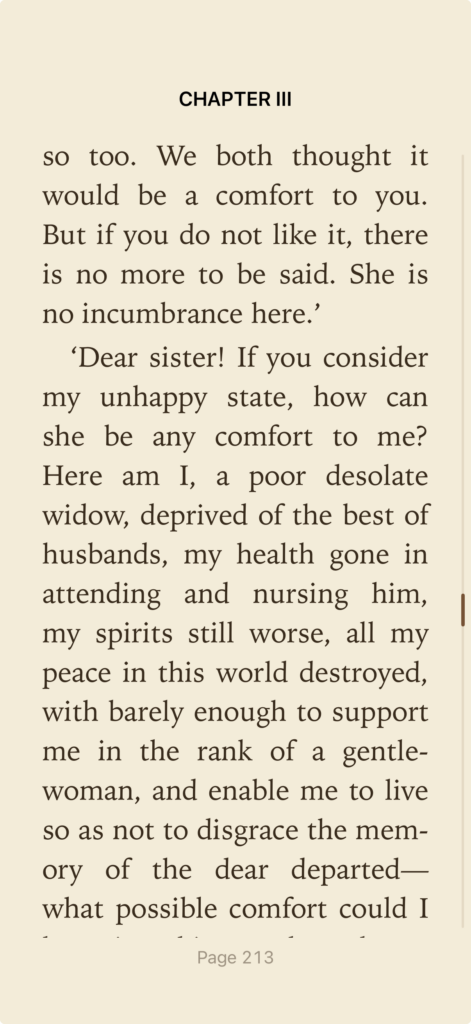
In scroll mode, a chapter is one continuous page you move through with your finger. While you scroll, a bar appears on the right edge; its length shows how much of the chapter is on screen. Drag the bar or tap along the rail to move quickly through the chapter. The arrows at the bottom take you to the previous or next chapter.
Images and Links
Tap an image to view it full screen; pinch or double-tap to zoom. Tap a link in the book — in its own table of contents or to a footnote, for example — to go straight to where it points.
Translating a Paragraph
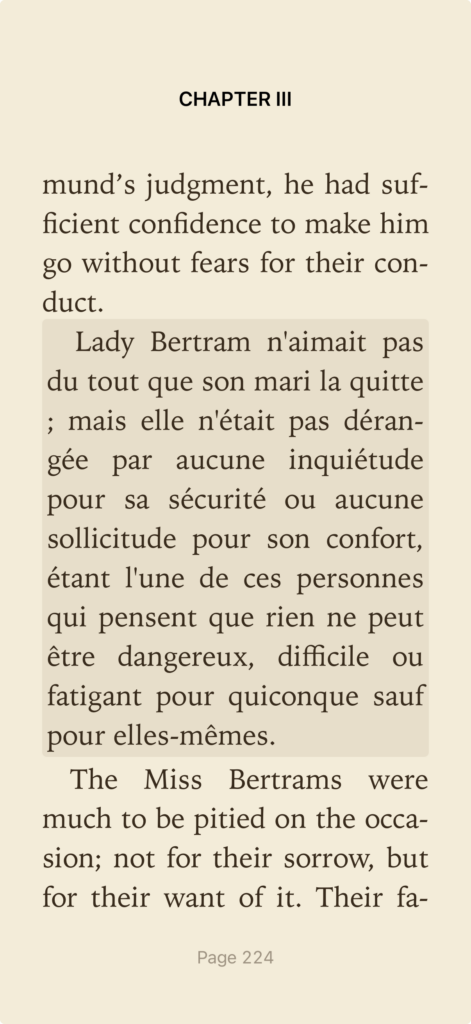
Translating a Paragraph
Tap a paragraph to translate it. Tap it again to return to the original text.
You set the default languages for all books in the Settings Menu (Translate from / Translate into). To use different languages for one particular book, open ☰ → Translation while reading; this choice applies to that book only.
Make sure the two languages are different, otherwise Babel Reader shows an error message. Very short paragraphs of one or two words cannot be translated, because the system needs a little more text to recognise the language.
Looking up a word
Press and hold an untranslated paragraph to use the system menu — copy, look up, or translate with iOS.
Reading Aloud and Sharing a Paragraph
Press and hold a translated paragraph to open its menu:
Share the original, the translation, or both via any app on your device.
Read aloud the original, the translation, or both one after the other. The paragraph shows whichever language is being read; tap Stop to end playback.