Versioneer keeps every app you ship, its releases, bugs, and planned features, in one place. This page walks you through setting it up for the first time.
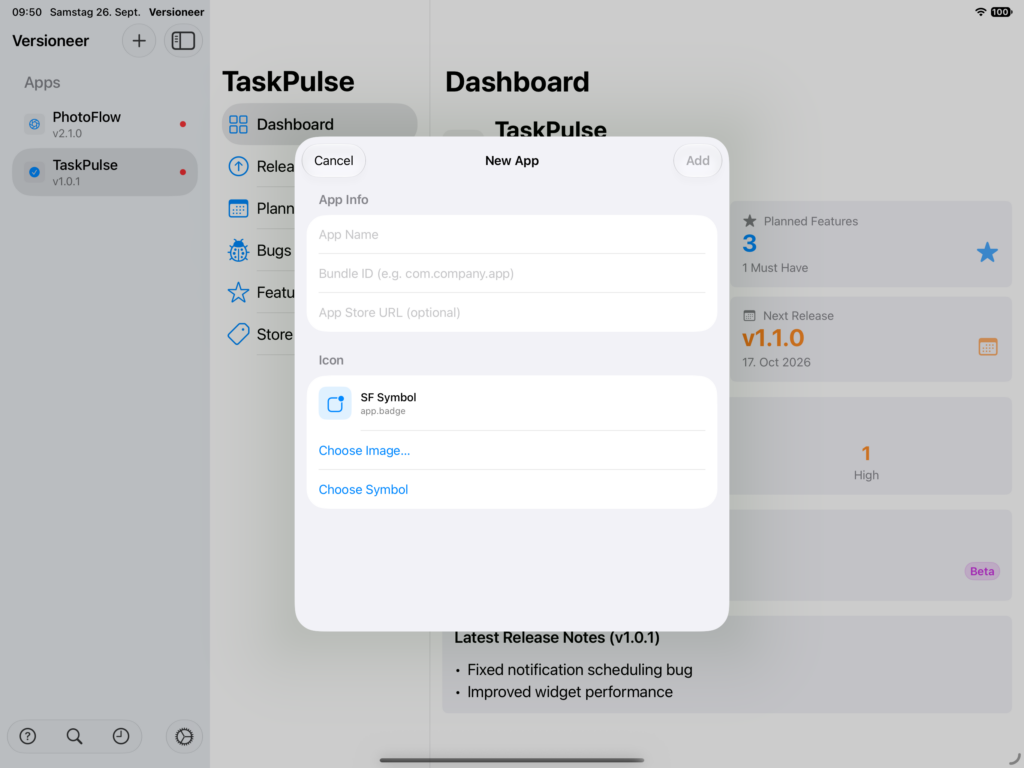
Add your first app. Tap the + button in the sidebar to create a new app project. Give it a name, let’s use “Unicode Companion”, a bundle ID, and pick an icon (more on custom icons in Managing Your Apps).
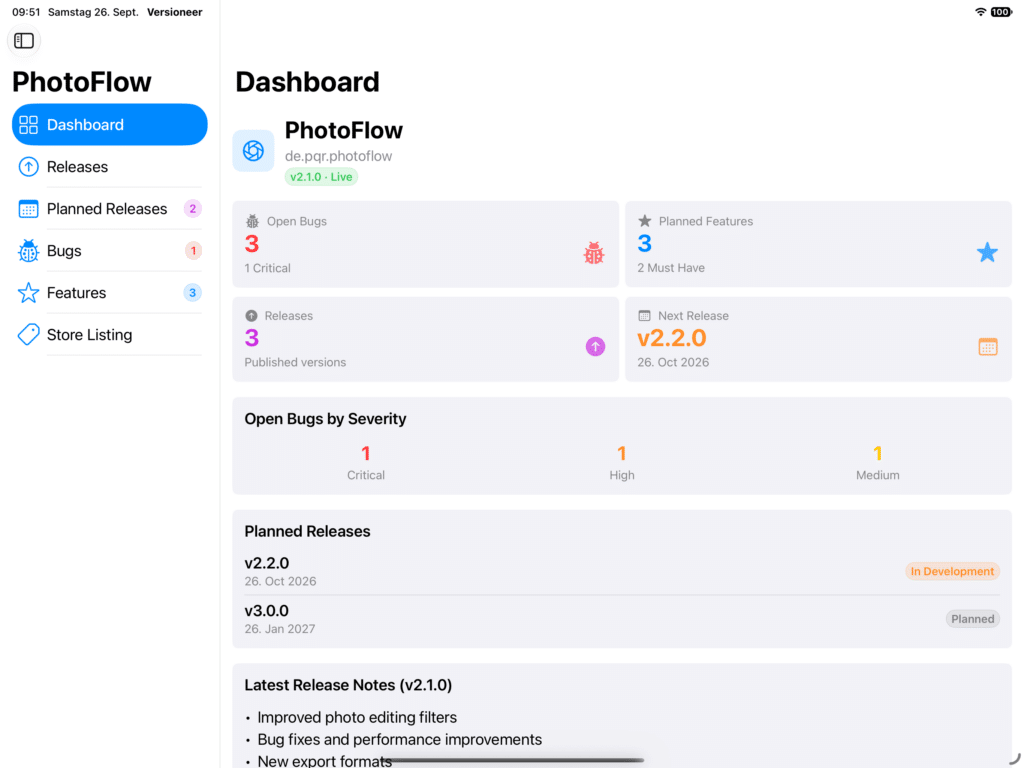
The Dashboard. Select Unicode Companion in the sidebar, then choose Dashboard. This is your at-a-glance overview: recent releases, open bugs, and planned features for that app, all on one screen.
Context menus everywhere. Right-click (or long-press on iOS) almost any item, a release, a bug, a feature, an app, for quick actions like Edit, Delete, Export, or Mark as Live. This is the fastest way to work once you know it’s there.
Global search. Tap the search icon, or press Cmd+F on the Mac, to find a bug, feature, release, or app by name from anywhere in Versioneer. Tap a result to jump straight to it.
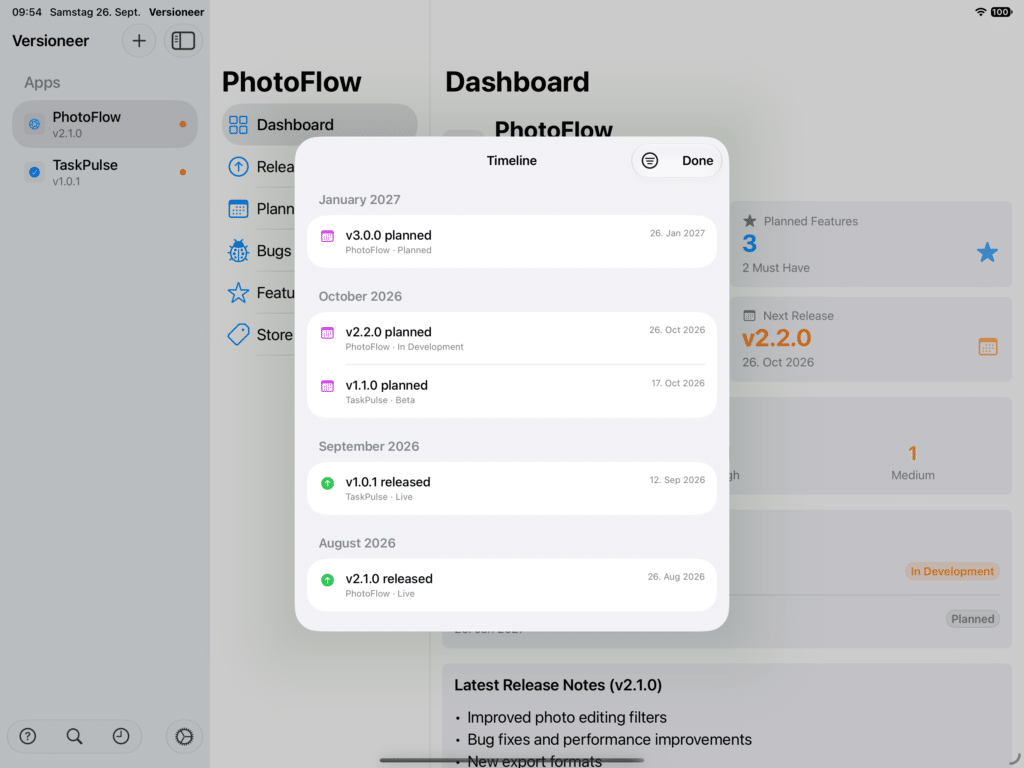
Timeline. Tap the clock icon (⇧⌘T on Mac) for a chronological view of releases, fixed bugs, and shipped features, across all your apps, not just one. Use the filter to narrow it down by event type or by app. This is a good page to check before writing “what’s new” release notes, since it lays out everything that happened since your last version.
iCloud Sync. Your data syncs automatically across all your devices via iCloud, there’s nothing to turn on.
Daily Focus widget. Add the Daily Focus widget to your Mac desktop (right-click the desktop, then Edit Widgets) or your iPhone/iPad Home Screen (touch and hold, then +, then search for Versioneer) to keep one open bug or planned feature in view. It changes every morning, a gentle daily nudge rather than a full task list.