List of Favorite Characters
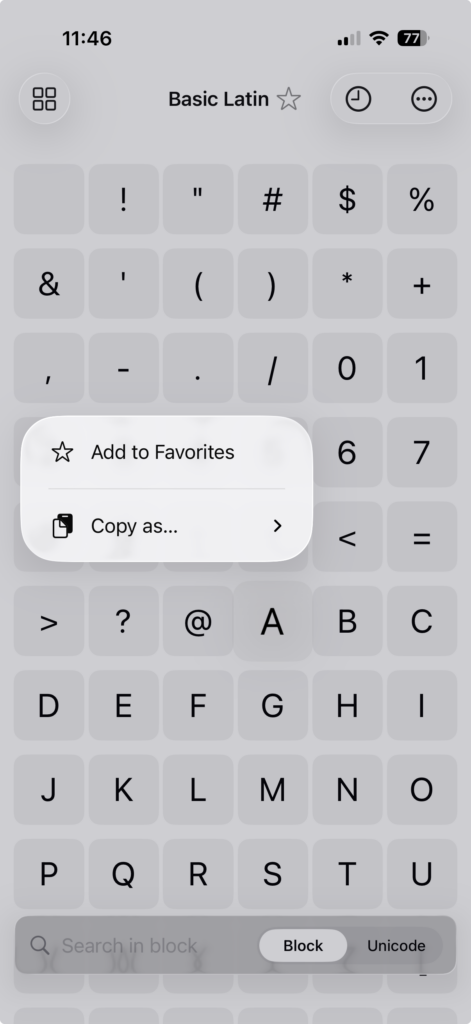
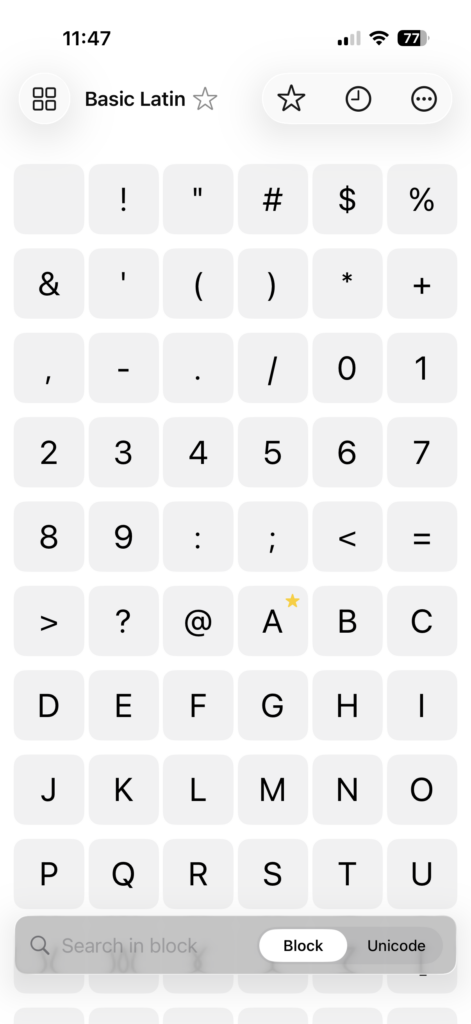
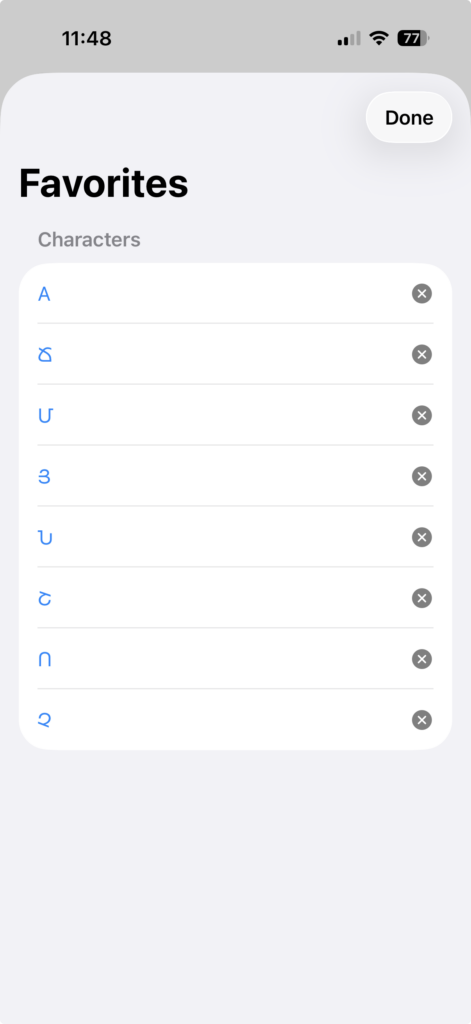
You can mark characters as “Favorite” so that they are added to the Favorites List.
Adding a Character to the Favorites List
In order to add a character to the Favorites, you can either long-press / right-click on it in the Grid view and select “Add to Favorites” from the context menu. Alternatively, you can select “Add to Favorites” in the Details View (press the star-icon underneath the character). Favorites are marked with a yellow star in the Grid view.
Removing a Character from the Favorites List
To remove a character from Favorites, long-press / right-click on it in the Grid view and select “Remove from Favorites” from the context menu. Alternatively, you can select “Remove from Favorites” in the Details View (press the star-icon underneath the character). Furthermore, you can delete a Favorite from within the Favorite List.
Displaying the Favorites List

Click on the icon with the Star (Star icon plus “Favorites” on the iPad and the Mac) to see the list of Favorites. Selecting a character from the Favorites List takes you to the Details View of that character, with the related Unicode Block selected in the Grid. The entire Favorites List can be deleted from the Settings.
List of Favorite Blocks
Adding a Character Block to the Favorites List
In order to add a character block (e.g. Basic Latin, Cyrillic, or Georgian) to the Favorites, select the Star icon next to the name of the displayed character block above the Grid. Favorites blocks are marked with a yellow star in the Grid view.
Removing a Character Block from the Favorites List
To remove a character block (e.g. Basic Latin, Cyrillic, or Georgian) from Favorites, select the yellow Star icon next to the name of the displayed character block above the Grid. You can also delete a block from the Favorites list by selecting the ‘x’ next to the block to be removed from the list.
Displaying the Favorite List
Click on the icon with the Star (Star icon plus “Favorites” on the iPad and the Mac) to see the list of Favorites blocks. Selecting a character block from the Favorites List takes you to the Grid view of the selected character block. The entire Favorites Blocks List can be deleted from the Settings.
List of Recent Characters
Adding a Character to the Recents List
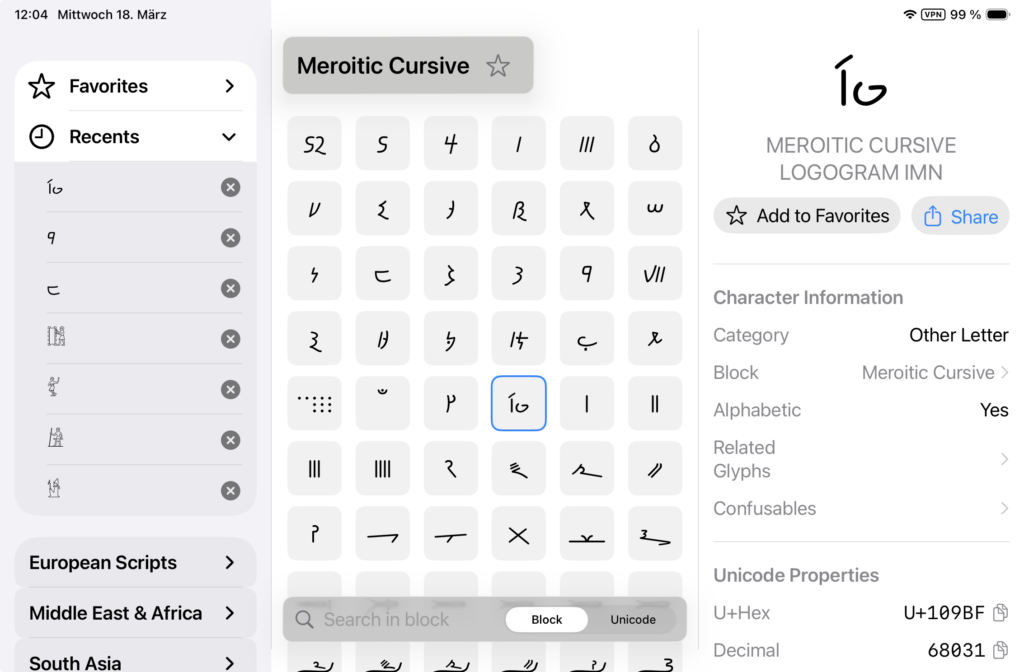
The Recents List is the list of the most-recent characters you have selected. You don’t have to do anything actively to add a character to that list.
Removing a Character from the Recents List
You can remove a character by opening the Recents List and select the ‘x’ next to the character to be removed.
Displaying the Recents List

Click on the icon with the Clock (Clock icon plus “Recents” on the iPad and the Mac) to see the list of Recent characters. Selecting a character from the Recents List takes you to the Details View of that character, with the related Unicode Block selected in the Grid. A character can be removed from the list by selecting the ‘x’ next to the character. The entire Recents List can be deleted from the Settings.