Searching for a Unicode Character
Strictly speaking, we should be talking about “Unicode glyphs”, as things like emoticons, diacritics, punctuation marks, and mathematical symbols aren’t really “characters”. But for the sake of convenience, let’s stick with character.
There are different ways of finding a character in the Unicode Companion. Let’s assume for the example that you are looking for the Cyrillic letter “ж” (U+0436).
By the way, regardless of how you identified your character, check out the enlarged character view by pressing/clicking on the character in the Details View. There are also arrows for selecting the previous or next character in the grid.
Browsing the Unicode Blocks

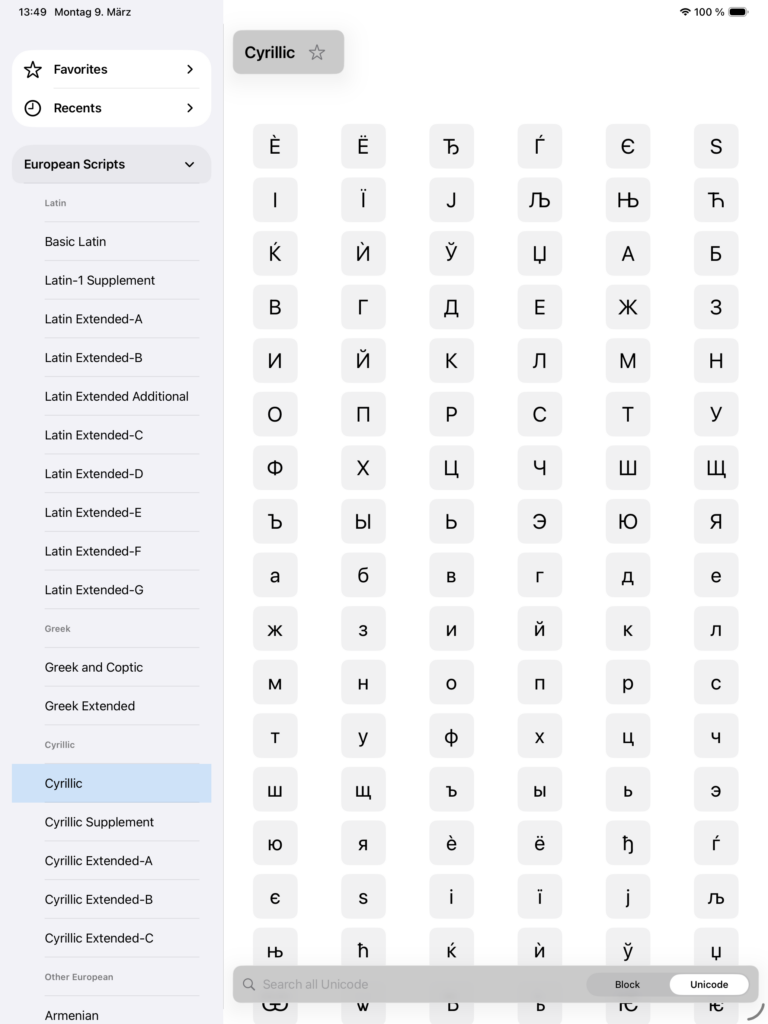
You can find a character by browsing the categories and blocks of Unicode characters on the left-hand side of the Mac and iPad screen or by pressing the above icon on the iPhone. For example, if you know that the Russian “ж” is a character of the Cyrillic script and that the script belongs to the European languages, you can open the “European Scripts” category and scroll down to the block “Cyrillic” and select it. There you find “ж” in the grid view.
Using the Search Function

Alternatively, you can use the Search function. Enter the character you are looking for (e.g. “Ж”, “zhe”, or “U+0436”) in the Search field at the bottom of the screen. Select “Block” if you are looking for a character within the block of Unicode characters presently displayed in the grid, or “Unicode” for searching in the entire set of Unicode characters (this can take a few seconds).
Identifying a Character by Scanning or Pasting a Text
A further way of searching for a character is by scanning or pasting a text.