Reading a book
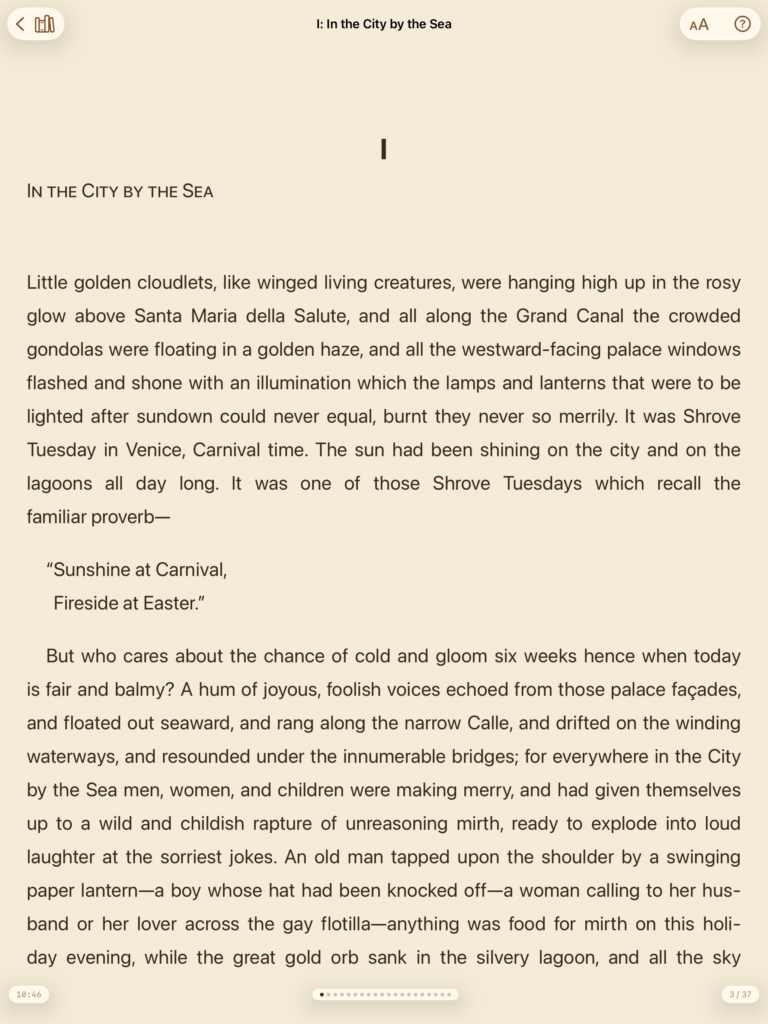
Changing font, font size, and theme

Tap the icon to open the menu for selecting the font (Georgia, Palatino, Baskerville, and System Font), increase or decrease the font size, and a theme (White, Sepia, Night, and Slate).
Moving to the Next or Previous Page
Swipe left for the next page, swipe right for the previous page. Swipe past the last page to go to the next chapter, or past the first page to go back to the previous one.
Using the Information at the bottom of the Reading Page
At the bottom left of the reading page you find a clock displaying the current time.
At the bottom right, you find a chapter indicator, showing the current chapter and the total number of chapters in the book. Tap the indicator to open a menu that allows you to jump to a specific chapter in the book.
The dots under the text indicate the number of pages in the chapter and which page of that chapter you are currently reading. In very long chapters, the dots are replaced by numbers (e.g. “23/48” meaning page 23 of a chapter with 28 pages).
Accessing Help

Tap the icon to see the help information, e.g. to learn about hyphenation and text-alignment options.
Going Back to the Library

Tap the icon to close the book and return to your library.
Translating a Paragraph
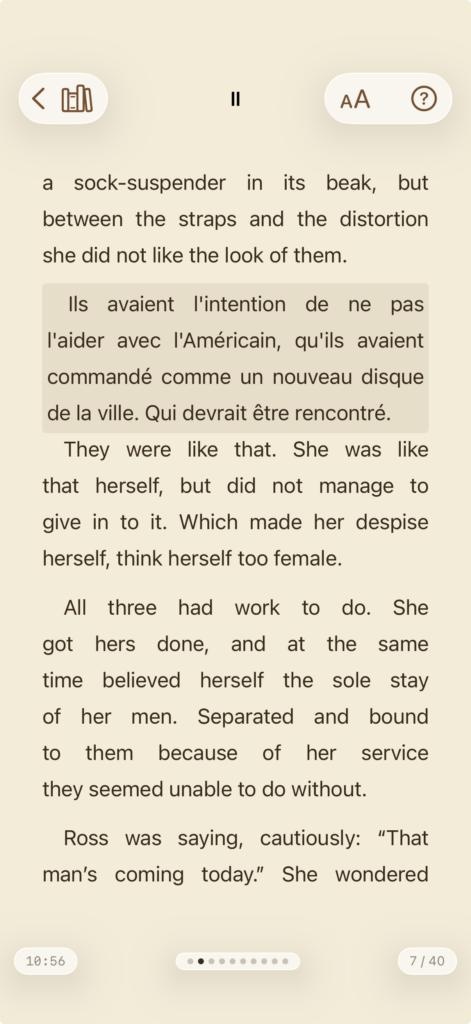
Translating a Paragraph
Tap a paragraph to translate it. Tap again to return to the text in the original language.
The source language (language of the original text) and the target language (language the paragraph is translated into) can be selected in the Settings Menu.
Make sure two different languages are selected, otherwise the Babel Reader will show an error message.
If you wish to look up an individual word or acronym, long press on that word to use the Apple features for looking up and translating words.
Reading Aloud and Sharing a Paragraph
Reading Aloud a Paragraph

If you activate this Read Aloud & Share switch in the Settings menu, you are shown a menu after having tapped a paragraph for translation and tapping it again. The options are to read aloud the original text, the translated text or both. Choose “Restore” to return to closed the window and return to the original text.
Sharing a Translated Paragraph.

If you activate this Read Aloud & Share switch in the Settings menu, you are shown a menu after having tapped a paragraph for translation and tapping it again. You find the option for sharing the selected paragraph – both the original and the translated paragraph will be shared.