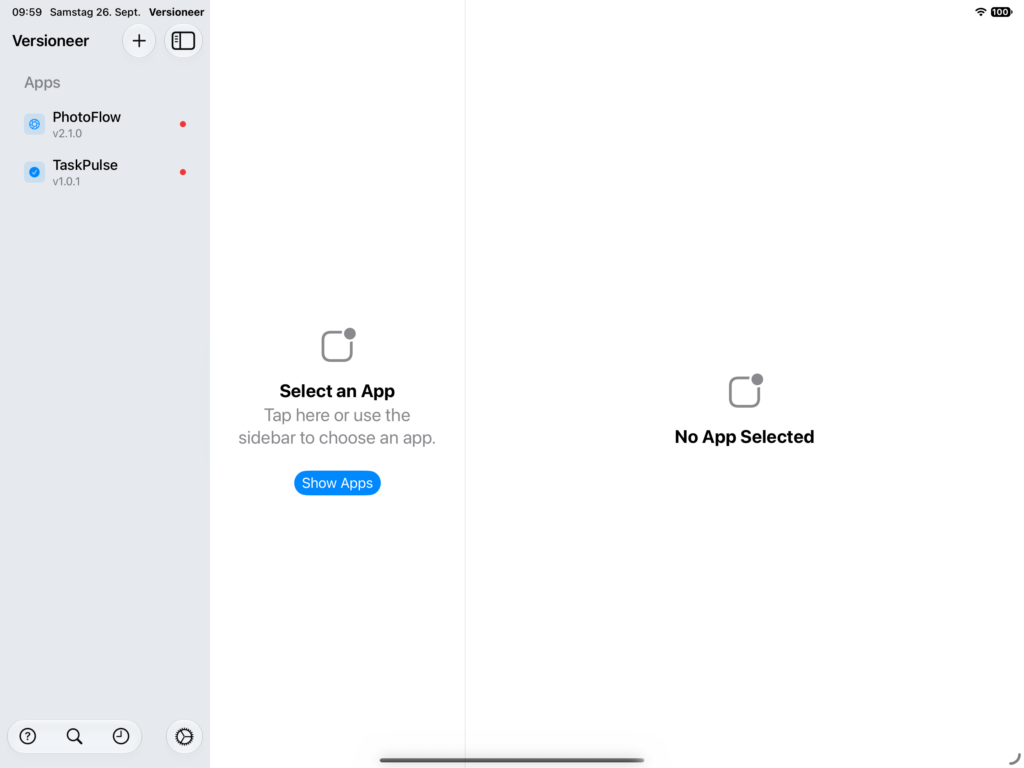
The app list. The sidebar lists every app you’re tracking. A red dot next to an app means it has critical bugs open. The version badge shows its current live release at a glance.
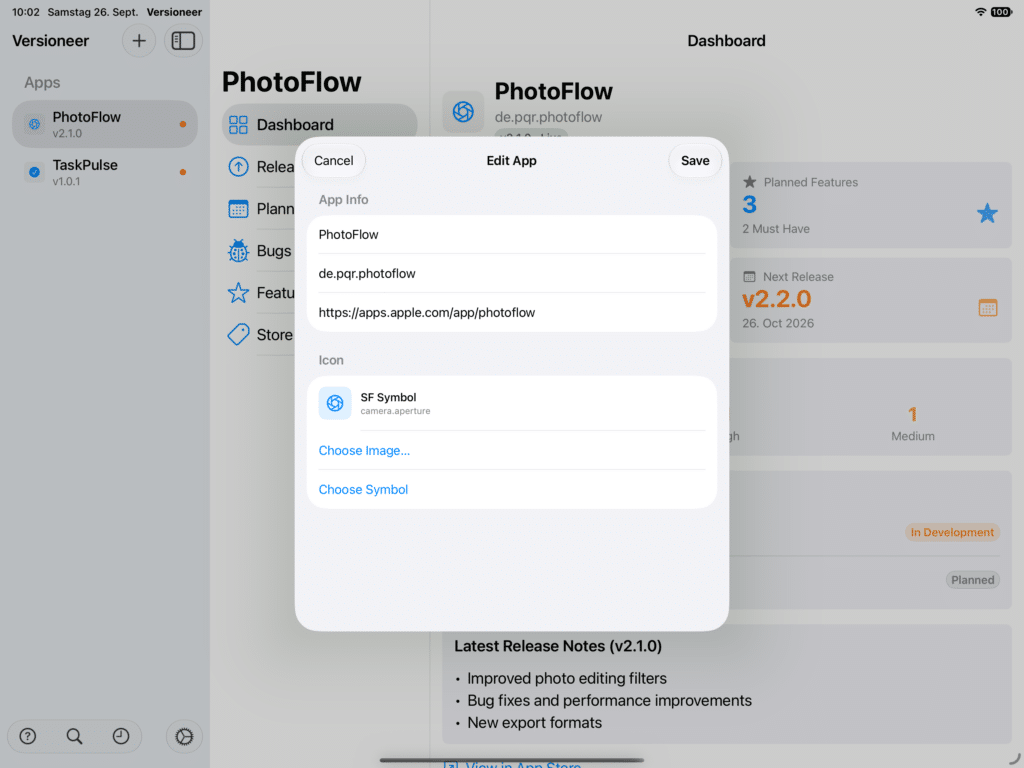
Editing an app. Right-click an app and choose Edit to change its name, bundle ID, or icon.
A real icon, not just a symbol. While editing an app, choose “Choose Image…” to use the app’s actual icon, ideally a 1024×1024 image, instead of an SF Symbol placeholder. It’s resized automatically and syncs to your other devices. If you change your mind, “Choose Symbol” or “Remove Custom Icon” switches back.
Deleting an app. Right-click an app and choose Delete. This is permanent, it removes the app along with all of its releases, bugs, and features, so use it deliberately.