
The Settings Menu
Access the Settings Menu by selecting the cogwheel icon in the Library View.
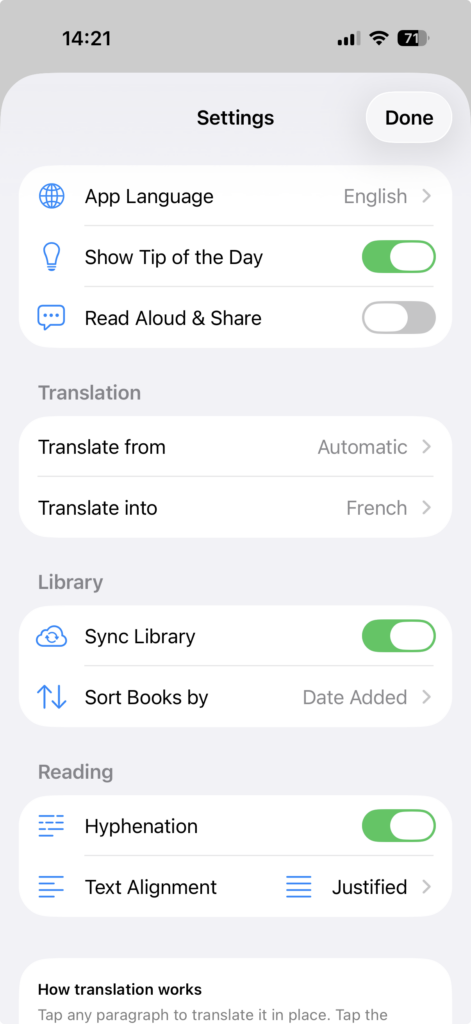
Choosing the app language

Select the app language of the Babel Reader. Choose among English, German, French, Dutch, Spanish, Italian, or your iPhone’s default language.
Activating / Deactivating the Tip of the Day

Use the switch to activate or deactivate the Tip of the Day that is shown when the app is started. If you have previously dismissed all tips (‘Got it’), activating the tips shows all of them again.
Activating / Deactivating Read Aloud & Share

This switch activates the Read Aloud and Share dialogue that is shown when you have translated a paragraph and tap it again. For details see Reading Around and Sharing a Paragraph.
Selecting the source and target language for translation
In this part of the settings menu, you can select the language you translate from (i.e. the language of the book you are reading) and the language you translate to (i.e. the language in which you wish to see the translated text). In most books, the source language can be set to ‘automatic’. If that does not work, you may wish to check the language of the book (see Changing the Book Details) to manually set it. Please note that the source and target languages must be different, otherwise an error message will be displayed.
Syncing your Library

Activate this switch if you want your library to be synchronised across your Apple devices (iPhones and iPads). You will always see the same books in the Babel Reader App on each device. In addition, your reading progress is synchronised as well: pick up any device and continue reading where you left off.
Sorting the books in your Library

You can select the order in which books are displayed in your Library. The options for sorting are: date added, title, author, language and recently read (meaning that the last book you read appears at the beginning of the book list).
Activating / Deactivating hyphenation

Use this switch to turn hyphenation on or off.
Choosing an option for text alignment

Choose your preferred text alignment: flush left, justified, flush right, or centered.
About the Babel Reader

Here you find information about the software version of Babel Reader you are using, the copyright, our Privacy Policy and you find a link for sending us feedback about what you like and don’t like about the app and about features you would like to see in future versions of the app.